 EN
EN
 FR
FR
 JA
JA
 RU
RU
 ES
ES

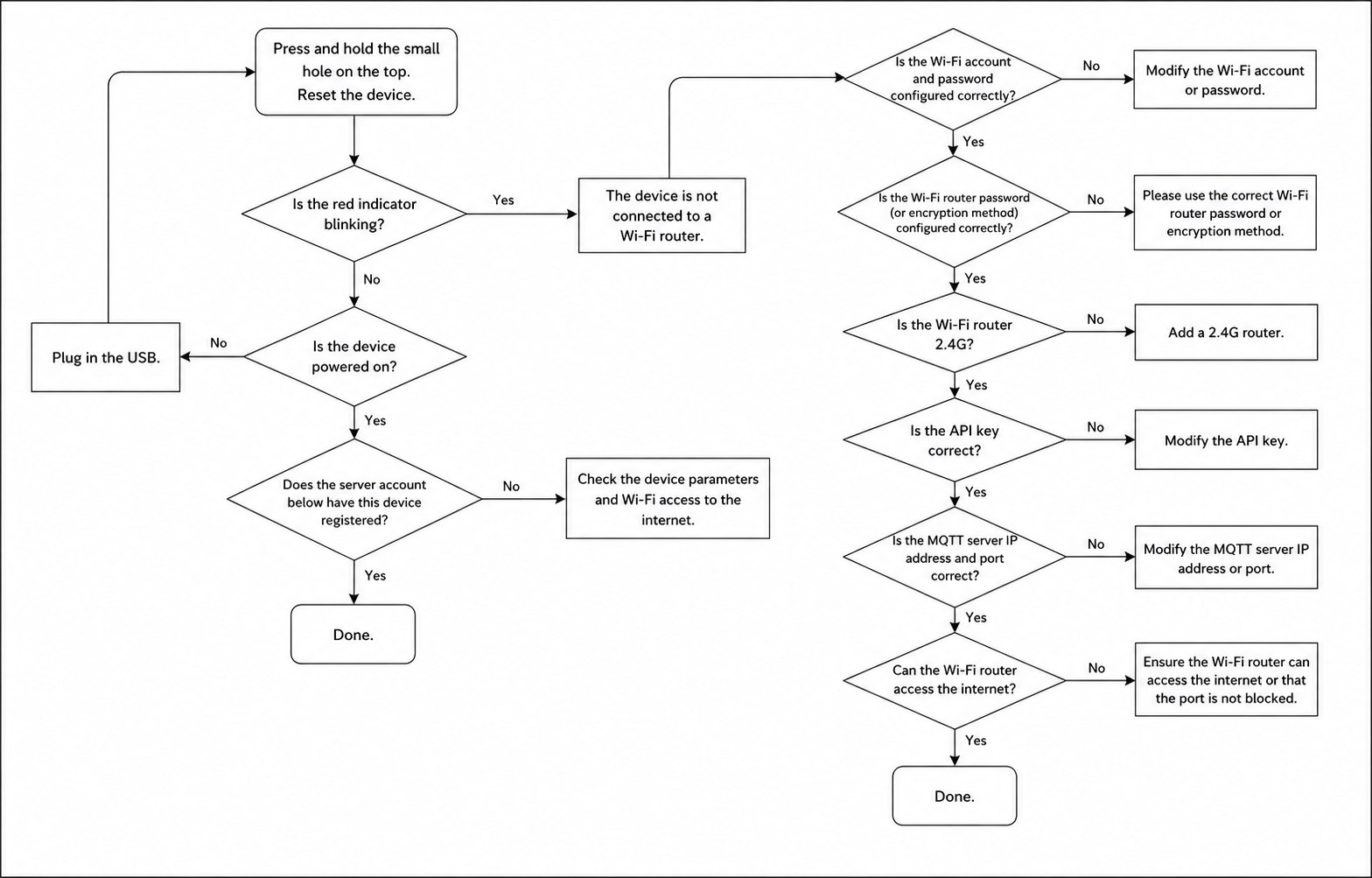
Failed WiFi tag connections are one of the most common issues encountered by many users when deploying electronic shelf labels (ESLs) or IoT devices.
Devices failing to connect, data not synchronising, or even interruptions to bulk deployments not only affect work efficiency but can also lead directly to operational losses.
So, why can’t WiFi tags connect to the network? Is it a device issue, an incorrect network configuration, or an oversight in the system settings?
Drawing on real-world applications, this article will help you quickly pinpoint the root cause of the problem and provide a clear, actionable solution.
Process Start
1. Insert USB cable.
If the device has no power: Return to the "Insert USB" step.
If the device has power: Proceed to the next step.
Basic Checks Phase
1. Press the small reset hole on the back of the device to perform a reset.
2. Is the red indicator light flashing continuously?
Yes: The device is not connected to the Wi-Fi router → Enter the "Wi-Fi Configuration Troubleshooting" branch.
No: Proceed to the next step.
3. Does the device have power?
No: Return to the "Insert USB" step.
Yes: Proceed to the next step.
4. Is this device listed under the server-side account?
Yes: Process ends.
No: Check device parameters and whether the Wi-Fi network has external internet access → Enter the "Network & Service Configuration Troubleshooting" branch.
Wi-Fi Configuration Troubleshooting Branch
1. Are the Wi-Fi SSID and password set correctly?
No: Correct the Wi-Fi SSID or password → Return to this step to re-check.
Yes: Proceed to the next step.
2. Is the Wi-Fi router's encryption method configured correctly?
No: Change the Wi-Fi router's encryption method, or update the encryption setting within the device configuration parameters → Return to this step to re-check.
Yes: Proceed to the next step.
3. Is the Wi-Fi router operating on the 2.4 GHz band?
No: Add or switch to a 2.4 GHz router → Return to this step to re-check.
Yes: Proceed to the next step.
4. Is the API Key value correct?
No: Correct the API Key value → Return to this step to re-check.
Yes: Proceed to the next step.
5. Are the MQTT server IP address and port number correct?
No: Correct the MQTT server IP address or port number → Return to this step to re-check.
Yes: Proceed to the next step.
6. Does the Wi-Fi router have access to the external internet?
No: Configure the Wi-Fi router to allow external internet access, or check if the necessary ports are blocked by a firewall → Return to this step to re-check.
Yes: Process ends.
Process End
The process concludes when any of the following conditions are met:
The device is already listed under the server-side account.
All Wi-Fi and service configuration checks have passed, and the Wi-Fi router has normal access to the external internet.