Home > > Operation Guide
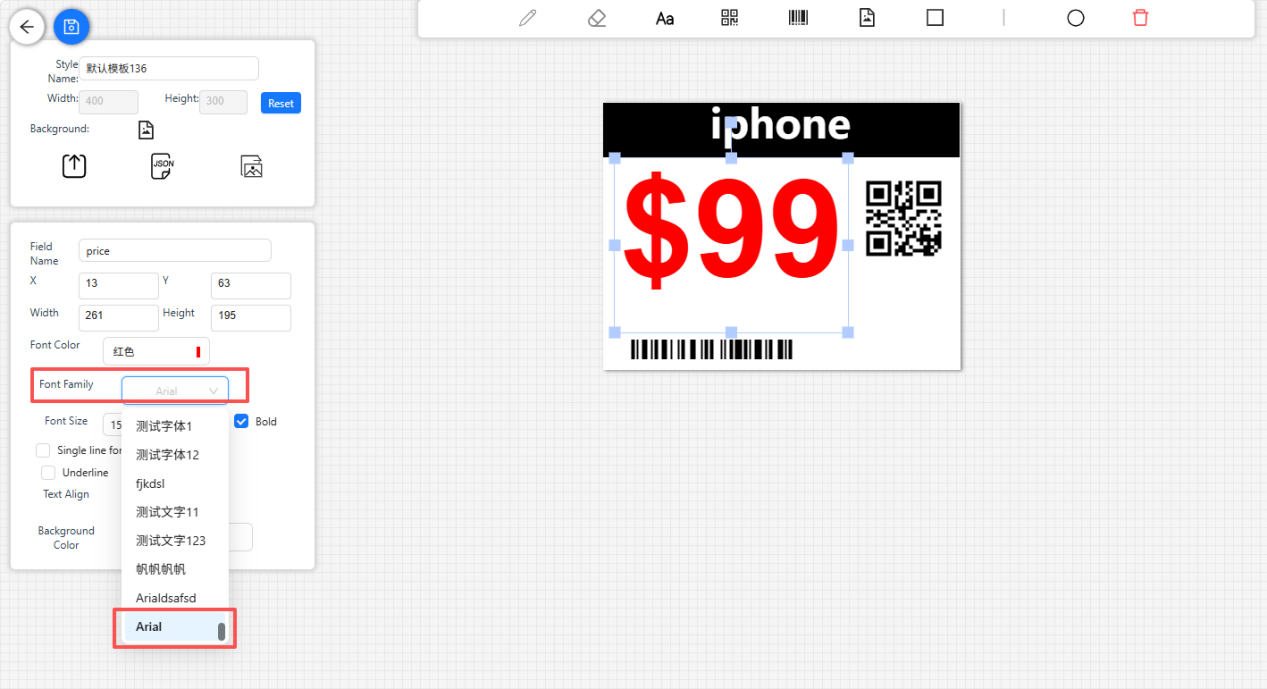
The ESLS system template settings allow you to add fonts; once added, you can select the font styles when creating templates.
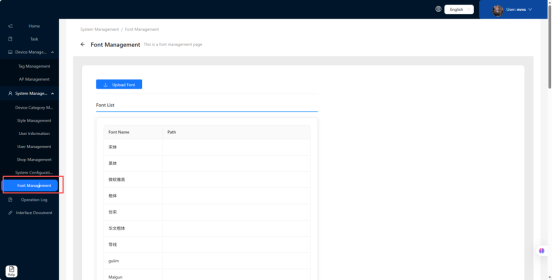
Access the Font Management interface
 Click ‘Font Management’ in the menu to access the Font Management interface.ile, and install it
Linux
In a Linux environment, the path must be set to the system’s font directory.
Windows
If the Windows system is unable to upload the file, please change the path to a valid one, such as D:/ or E:/.
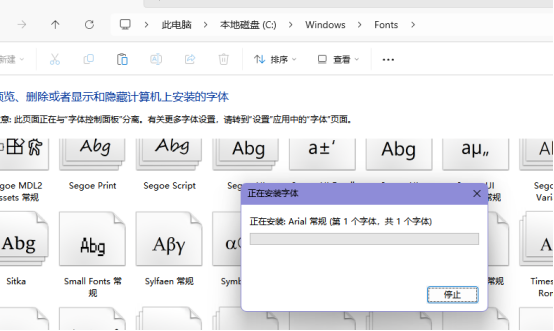
After clicking ‘Confirm’, you will need to install the font file (font.ttf) in the C:\Windows\Fonts directory.
1.Click the 'Upload Font' button to open the font upload dialogue box.
2.In the font upload pop-up window, enter the font name and the upload path (note that uploads are not supported on Windows systems; see the message above). Once you have uploaded the font file, click the ‘OK’ button.
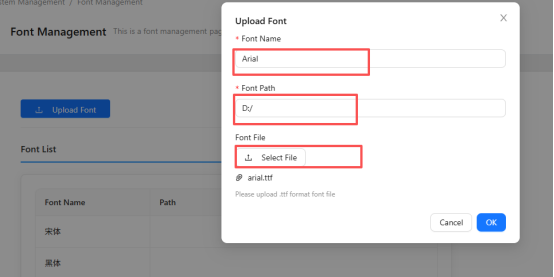
3.The font has been successfully added after clicking 'OK'.
Added successfully
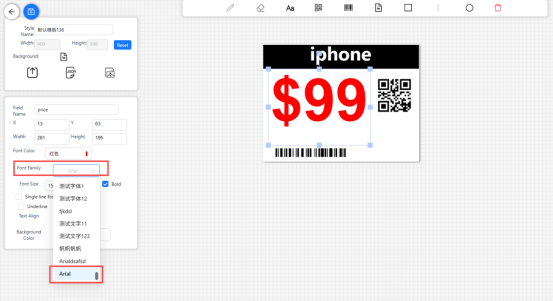
Once added successfully, you can select the font on the Template Management page.
 EN
EN
 FR
FR
 JA
JA
 RU
RU
 ES
ES