Home > > Operation Guide
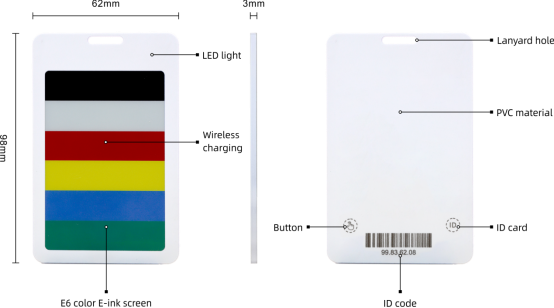
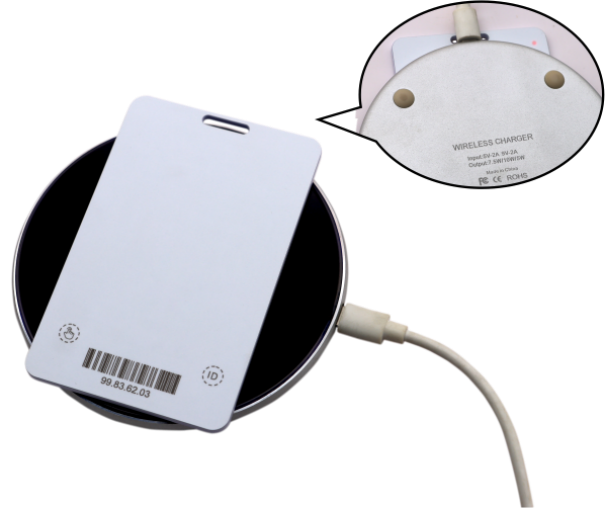
A:3.6-inch Bluetooth E-Ink Badge
B:The APP installation guide
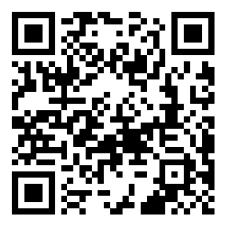
1.Download the APP. For Android phones: Use a browser to scan the code, download the APK file, then install it.
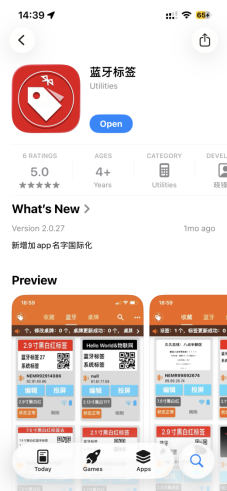
2.For iOS phones: Search "bleTag" in the Apple Store.
C.Functional requirements for running the APP
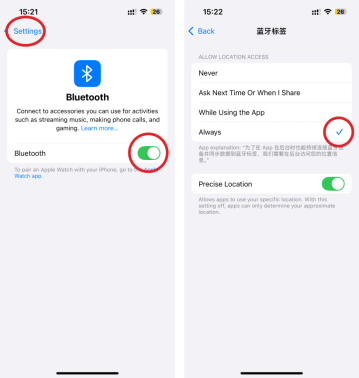
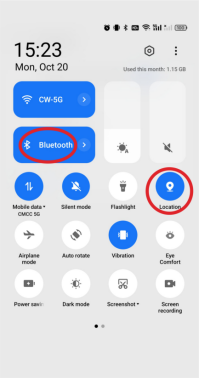
When running the APP, need to turn on your phone's Bluetooth and location function.
1.IOS phones: Location of Bluetooth and positioning functions.
2.Android phones: The location of Bluetooth and positioning functions.
D:Production Process of Web Template for Computer End
Log in to the Tag Manager System via the following link:
Click "Device Management" → "Template Management" → "add" → "TempEdit"; in the "Type" option under "Screen Params", select the tag model that matches your device. The system supports multiple content formats including text, images, QR codes, and barcodes. After completing the template editing, save it to the Template Management module.
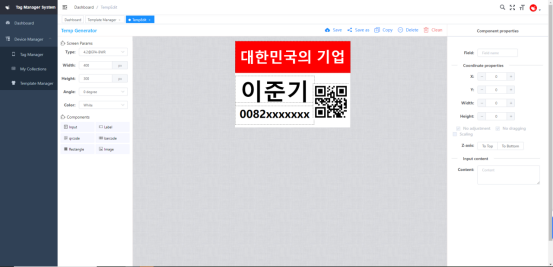
1.Open the URL http://47.106.109.236:8081/ in a browser.
2.Log in to your account, click "Device Manager" and navigate to the "Template Manager" section.
3.Click "Add" to enter the "TempEdit" section.
4.Select the "Screen Params" type and ensure it matches the label.
5.Add various component types freely to create a personalized label template.
6.Save or save as a new template, and the template will be automatically synced to your account.

 EN
EN
 FR
FR
 JA
JA
 RU
RU
 ES
ES